
How to Register for UPI in 2026: Complete Guide with 3 Methods (5-10 Minutes)
Step-by-step tutorial from zero to your first successful UPI payment - covers all banks, all apps, all scenarios
Understanding "UPI Registration": What It Really Means (Concept Clarity First)
Here's the confusion: You search "How to register for UPI" expecting to fill a form on some UPI website. But there's NO central UPI registration website. No forms to fill. No UPI account to create. So what does "UPI registration" actually mean?
💡 Concept Clarity: UPI is NOT an App
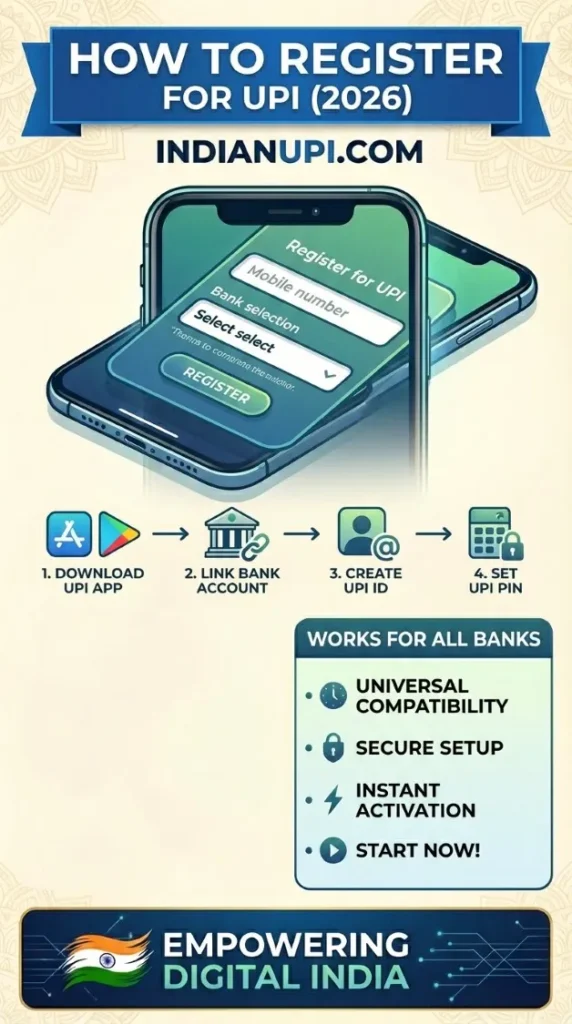
UPI is a payment SYSTEM (like Internet), not an app (like Chrome). You don't "register for Internet" - you get an internet connection and use browser apps. Similarly, you don't "register for UPI" - you activate UPI functionality in an app and link your existing bank account. "UPI Registration" actually means: (1) Download a UPI-enabled app + (2) Link your bank account + (3) Set UPI PIN. That's it. No central registration, no new account creation. You're enabling UPI on your existing bank account through an app.
What Happens During "Registration"?
When you "register for UPI", you're actually doing 3 things:
- Linking: Connecting your bank account to the UPI app (app gets permission to access your account)
- Creating VPA: Getting your UPI ID (yourname@paytm) - this is your UPI "address"
- Setting PIN: Creating 4-6 digit password for authorizing payments (this is your UPI "key")
Once these 3 steps are done, you're "registered". Your bank account is now UPI-enabled. You can send and receive money using UPI. The entire process takes 5-10 minutes for first-timers, 3 minutes for tech-savvy users.
Email Analogy: Registration Explained
Setting up email: (1) Choose email service (Gmail, Yahoo), (2) Create email address ([email protected]), (3) Set password. Setting up UPI: (1) Choose UPI app (PhonePe, GPay), (2) Get UPI ID (yourname@phonepe), (3) Set UPI PIN. See the parallel? You're not "registering for email" - you're creating an email account. Similarly, you're not "registering for UPI" - you're activating UPI on your bank account. Semantics matter for understanding!
What You Need: 5 Requirements Before Starting (Gather These First)
Before beginning registration, ensure you have these 5 things. Missing any one = registration will fail. Having all 5 = smooth 5-minute process:
Smartphone (Android/iOS)
Minimum: Android 5.0+ or iOS 10+. Most phones from 2016+ work. Storage: 50-100MB for app. Internet: Mobile data or WiFi (for initial setup). Important: UPI is device-locked - you can only use UPI on THIS phone. Changing phones requires re-registration.
Active Bank Account
Type: Savings or Current account. Status: Active (not dormant). Balance: No minimum for UPI activation, but some banks require ₹100-500 for first transaction test. Check your bank's UPI support first - 400+ banks enabled.
Mobile Number (Bank Registered)
Critical: The mobile number MUST be registered with your bank. UPI verification happens via SMS to this number. If you changed SIM or number, update in bank records first (visit branch or use net banking). Common failure: 60% registration failures are due to mobile mismatch.
Debit Card Details
Need: Last 6 digits + Expiry date (MM/YY). Type: ATM debit card (not virtual card). Why needed: Bank verifies you own the account. Alternative: Some banks allow Aadhaar-based verification or net banking verification (ICICI, Axis). But debit card is universal method working for all banks.
SMS Permissions
Why: App needs to read OTP SMS from bank. Permission: Grant SMS access when app asks (during installation). Privacy: UPI apps only read bank SMSes, not personal messages. Without SMS: You'll manually enter OTP (slower but works). Grant permission for smoother experience.
⚠️ Pre-Check: Is Your Bank Account UPI-Ready?
Not all bank accounts support UPI even if the bank does. Requirements: Account must be KYC-compliant (Aadhaar linked), not under investigation, not NRI account (only resident accounts), and mobile number updated. Quick check: Call your bank's customer care: "Is my account [number] UPI-enabled?" They'll confirm in 30 seconds. This saves 10-minute failed registration attempts.
Method 1: Register via UPI App (Recommended - Easiest & Fastest)
5-Minute Registration via PhonePe/Google Pay
Works for 98% of users | Success rate: 95% | Time: 5-10 minutes
Download UPI App from Play Store / App Store
Open Google Play Store (Android) or App Store (iOS) → Search "PhonePe" or "Google Pay" → Tap INSTALL → Wait 30-60 seconds. Important: Download ONLY from official stores, never from links sent via SMS/WhatsApp (scam risk). Verify developer name: "PhonePe Private Limited" or "Google LLC".
Open App & Grant Necessary Permissions
Launch app → Allow: SMS (for OTP reading), Phone (for number verification), Contacts (optional - for easy payments to contacts). The app explains why each permission is needed. Grant all recommended permissions for smooth experience. You can revoke later if concerned.
Verify Your Mobile Number
App detects your SIM number automatically (or asks you to select if dual SIM). Sends SMS to verify (happens in background). Critical: This MUST be the number registered with your bank. App checks with NPCI database - if mismatch, registration fails. Success = Green checkmark appears.
Link Your Bank Account
App shows "Add Bank Account" → Displays list of all UPI-enabled banks (alphabetical) → Select YOUR bank → App fetches your linked accounts automatically via your mobile number → Select account to enable → Tap "Next". No manual account number entry! App communicates with bank servers using your verified mobile number.
Set Your UPI PIN (Critical Security Step)
App asks for debit card details: Last 6 digits + Expiry date (MM/YY format) → Tap "Proceed" → Bank sends OTP to registered mobile → Enter OTP → Create 4-6 digit UPI PIN → Confirm PIN → Done! This PIN is your UPI password - needed for every transaction. Choose something you'll remember but others can't guess. Avoid: 1234, 0000, birth year.
Create Your UPI ID (Your Payment Address)
App suggests UPI ID based on your name (e.g., rajeshkumar@phonepe). You can customize or accept default. Format: [anything]@[appname]. This becomes your UPI identity. Share this with people to receive money (like email address for payments). You can create multiple UPI IDs for different purposes (personal, business).
Make Test Transaction (Verify Everything Works)
Send ₹10 to yourself (another account if you have) or trusted friend → Enter UPI PIN → Transaction completes → Both parties receive SMS → Check bank balance reduced by ₹10. Success = You're fully registered! Failed? Don't panic. 99% of first-time failures are: Wrong PIN (retry), insufficient balance (add ₹100), or network issue (try after 5 minutes).
The Complete Journey: Zero to UPI-Ready
Start: You have bank account + debit card + phone. Step 1: Download app (1 min). Step 2: Mobile verification (automated, 30 sec). Step 3: Link bank (select from list, 1 min). Step 4: Set PIN (debit card + OTP, 2 min). Step 5: Get UPI ID (choose name, 30 sec). Step 6: Test payment (₹10 transfer, 1 min). End: You're now among 300 million UPI users! Total time: 5-7 minutes. Complexity: Easier than creating Facebook account.
Method 2: Register via Your Bank's App (Alternative Method)
Register Through Bank's Official App
For users who prefer official bank apps | Success rate: 98% | Time: 7-12 minutes
Download Your Bank's Official App
SBI users: Download "YONO SBI" or "BHIM SBI Pay". HDFC users: "HDFC Bank MobileBanking". ICICI: "iMobile Pay". Axis: "Axis Mobile". Each bank has its own app. Search "[Your Bank Name] mobile banking" in Play Store. Verify it's official (check developer, download count 1M+).
Login to Your Bank Account
First-time: Register with customer ID + ATM PIN or internet banking credentials → Set app password. Existing users: Login directly. This step confirms you own the account. Bank apps are more secure (fingerprint/face login) but UPI functionality is identical to third-party apps.
Navigate to UPI Section
Look for: "UPI", "BHIM UPI", "Payments", or "Quick Pay" in main menu. Bank apps integrate UPI within their interface. Tap → "Activate UPI" or "Register for UPI". Some banks (like SBI) have separate BHIM apps - both work, choose one.
Create UPI PIN & UPI ID
Same process as Method 1: Debit card details → OTP → Set PIN → Create UPI ID. Format: yourname@[bankname]. Example: rajesh@sbi, priya@hdfcbank. Bank apps often auto-suggest your name from account records (saves typing). Accept or customize.
Test & You're Done
Make small test payment (₹10-50). Bank app UPI works with ALL other UPI apps - someone using PhonePe can pay your SBI UPI ID. That's the beauty of interoperability. Your bank app = 100% compatibility with your bank, but works with everyone else's apps too!
Bank App vs Third-Party App: Which to Choose?
Bank App Advantages: Integrated with internet banking, see account details, 100% compatibility with YOUR bank, direct customer support, no app-switching for banking tasks.
Third-Party App Advantages: Better UI/UX, cashback & rewards, multi-bank management (link 4-10 banks in one app), more features (bill payments, investments), faster updates and innovations.
Smart users do both: Register on bank app (primary, most reliable) + PhonePe/GPay (secondary, better features). Use bank app for large transactions, third-party for daily use. Best of both worlds!
Method 3: Register via USSD Code *99# (No Internet Required - Feature Phone Compatible)
Register Using *99# (Basic Phones Supported)
Works on any mobile phone | No data/WiFi needed | Time: 10-15 minutes
Dial *99# from Registered Mobile
Open phone dialer → Type *99# → Press call button. USSD menu appears (text-based). This works on: Feature phones, smartphones without internet, when internet is down. Completely free - no call charges (TRAI mandated).
Select Language & Bank
Menu shows: English, Hindi, + regional languages. Select language → Menu shows numbered list of banks. Find your bank → Enter corresponding number. Example: "Press 1 for SBI, 2 for HDFC..." Enter your bank's number.
Follow Prompts to Set UPI PIN
Menu guides you: Enter last 6 digits of debit card → Expiry date → OTP → Create 4-digit PIN (USSD only supports 4-digit, not 6) → Confirm PIN. Process is text-based (no touch interface) but step-by-step guidance provided. Takes 10-12 minutes vs 5 minutes for app (slower but works everywhere).
Your UPI ID is Auto-Created
USSD automatically creates UPI ID format: [mobilenumber]@[bankname]. Example: 9876543210@sbi. You can't customize via USSD (unlike apps). To get custom ID (name@bank), use app later. USSD is for basic functionality, apps for full features.
When to Use *99# Method?
- You have feature phone (Nokia, Samsung Guru, etc.) without WhatsApp/apps
- Smartphone is broken/lost but you urgently need UPI access
- In area with no mobile data (remote village, during network outage)
- Helping elderly parents register (they're comfortable with dial pad, not apps)
- Privacy-conscious users who don't want to install apps
⚠️ USSD Limitations You Should Know
USSD (*99#) provides basic UPI functionality: Send money, check balance, generate MPIN. It does NOT support: QR code scanning (no camera), payment requests, bill payments, transaction history (limited), app-specific rewards. Think of USSD as "UPI lite" - functional but basic. For full experience, use apps. But in emergencies or for basic users, USSD is lifesaver!
Common Registration Issues: 8 Problems & Expert Solutions
40% of first-time users face at least one issue during registration. Here are the 8 most common problems with proven solutions:
❌ Issue 1: "Mobile Number Not Registered with Bank"
Cause: Your current SIM number differs from what bank has on record. Maybe you changed number but didn't update bank.
❌ Issue 2: "Invalid Debit Card Details"
Cause: Entered card number wrong, or card expired, or using virtual card (won't work), or card not activated for online transactions.
❌ Issue 3: "OTP Not Received"
Cause: SMS delay (network congestion), number not bank-registered, DND (Do Not Disturb) activated blocking bank SMSes, or poor network signal.
❌ Issue 4: "Bank Not Listed in App"
Cause: Either bank doesn't support UPI (rare for major banks), or you're searching wrong name (State Bank of India vs SBI), or app's bank list isn't updated.
❌ Issue 5: "Couldn't Fetch Bank Accounts"
Cause: Bank's server temporarily down, mobile number not linked to any active account in that bank, or bank requires separate UPI activation (some banks need manual activation at branch).
❌ Issue 6: "UPI PIN Creation Failed"
Cause: Weak PIN rejected (too simple like 1111), or PIN doesn't match confirmation, or bank's UPI server issue, or you're on VPN (some banks block VPN for security).
❌ Issue 7: "Account Already Registered on Another Device"
Cause: You previously registered UPI on old phone. UPI allows only ONE active device per bank account (security measure). Old phone's UPI is still active.
❌ Issue 8: "Registration Successful But Can't Make Payments"
Cause: UPI registration done but bank needs 1-2 hours to fully activate. Or insufficient balance (need minimum ₹100 for first transaction). Or wrong UPI PIN being entered.
After Registration: 5 Things to Do Immediately (Optimize Your UPI Experience)
Congratulations! You're UPI-registered. But don't stop here. These 5 post-registration steps enhance security, convenience, and rewards:
✅ Post-Registration Checklist
The Registration Journey: What You've Achieved
Before: You needed cash, or had to remember 16-digit account numbers, or carried 4-5 different bank/credit cards. Payments took 2-24 hours. Fees on every transfer. After: You can pay ANYONE with just their mobile number or UPI ID. Money reaches in 5 seconds, FREE. Works 24/7. One app manages all your banks. You've joined the future of payments. 10 minutes of setup = Lifetime of convenience. Welcome to the UPI revolution - you're now part of the world's largest real-time payment system!